Get Started
Set up your FlowCentral instance in four simple steps.
Prerequisites
FlowCentral Base is a lightweight Java-based framework. Before running FlowCentral Base, ensure your system meets the minimum runtime requirements.
Minimum System Requirements:
-
Java Runtime Environment (JRE) 1.8 or higher
-
2 GB RAM (4 GB recommended)
-
500 MB free disk space
-
Operating System: Windows, macOS, or Linux
Installing Java:
If Java is not installed on your system:
-
Download
OpenJDK from Adoptium -
Or download
Oracle JDK from Oracle
Verify Java Installation:
After installation, open a terminal or command prompt and run the Java check version command as shown below:
$ java -version
openjdk version "1.8.0_362"
OpenJDK Runtime Environment (build 1.8.0_362-b09)
OpenJDK 64-Bit Server VM (build 25.362-b09, mixed mode)
As shown above, you should see output indicating the installed Java version. If the command is not recognized, ensure Java is properly installed and added to your system PATH.
Download & Extract FlowCentral
We'll be using FlowCentral Solo, a variant of FlowCentral Base, that is distributed as a ZIP archive containing the executable application and its external configuration.
Download FlowCentral
Download the FlowCentral Solo distribution package from our official website. Verify the download integrity using the SHA256 checksum:
-
Download
flowcentral-solo-1.0.0.zip -
View
SHA256 Checksum
Extract to a Working Directory
Extract the ZIP file into a suitable working directory where FlowCentral will run. This directory should be writable and dedicated to the FlowCentral instance. Expected extracted structure is shown below.
<working-folder>/
├── flowcentral-solo.jar
└── application.properties
Run the FlowCentral Instance
Once extracted, you can start FlowCentral using the command line.
Navigate to the Working Directory
Open a terminal or command prompt and change into the working directory where FlowCentral was extracted.
$ cd path/to/<working-folder>
Start FlowCentral
Run the following command:
$ java -jar flowcentral-solo.jar
The application will start and log initialization details to the console. Once startup is complete, FlowCentral will be available via your browser.
Note: By default the instance listens on port 8080 and uses an in-memory HSQLDB database.
You can change any of these settings and more in the extracted 'application.properties' file before starting the FlowCentral instance.
Log In to FlowCentral
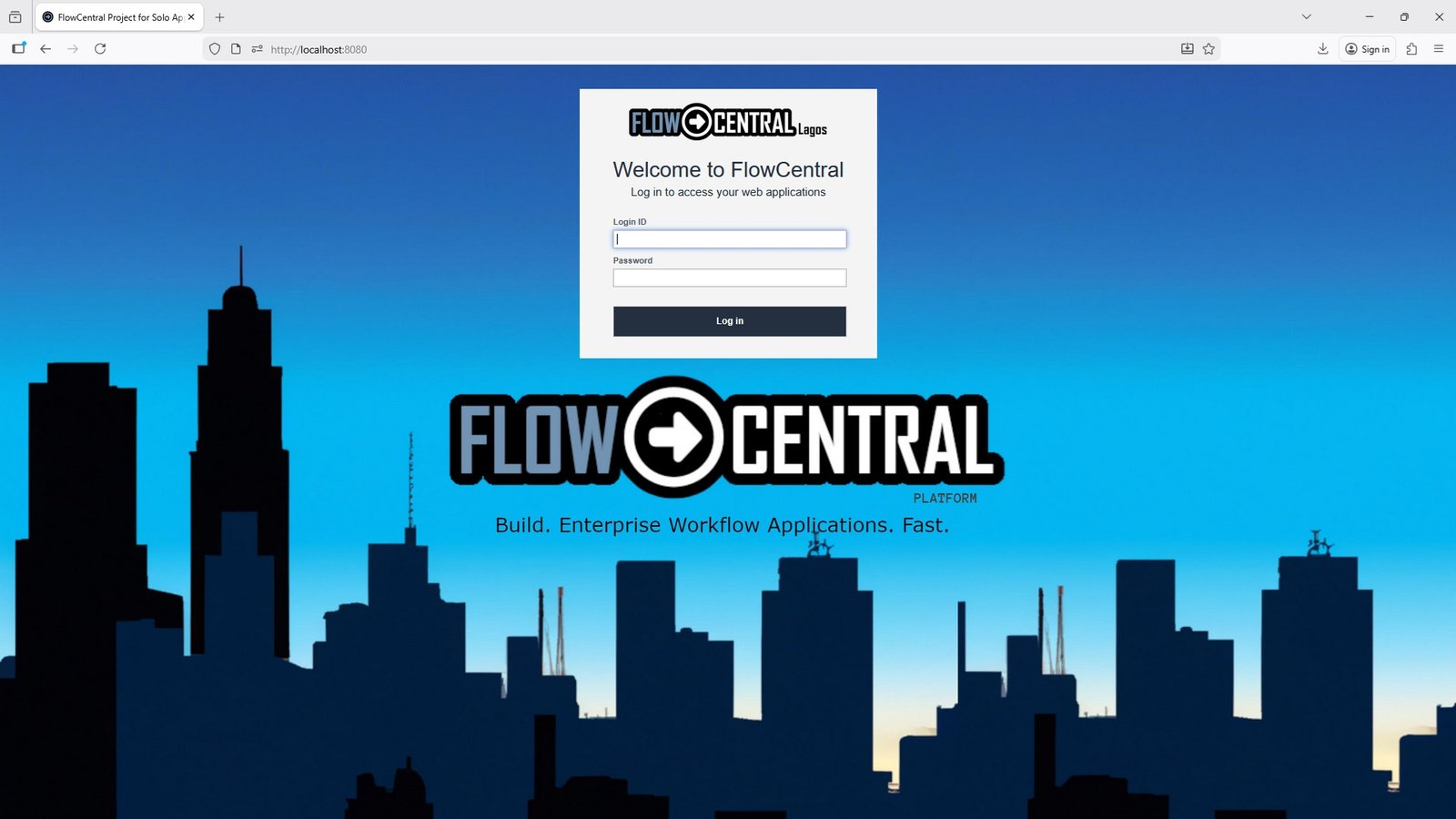
Open a standard and modern web browser and navigate to the FlowCentral instance URL.
http://localhost:8080
You will be presented with the FlowCentral login screen.
Use login ID 'SYSTEM' and password 'system' to sign in. You'll be asked to change default password.